Required to Start Campaigns
To start launching campaigns, you must have completed the following items in the table below:
| Initialize ByteBrew | Initialize both ByteBrew SDK and ByteBrew Ads in your app. |
|---|---|
| Implement App Monetization Tracking | Implemented Ad Event Tracking and In-App Purchase Validation in your SDK integration for Ctrl powered LTV and Retention Campaigns. |
| Create Ad Units | Created your app's Ad Units and implemented them into your app. |
| Setup Finance Account | Completed your account's finance setup in the Finance dashboard. |
Setup Campaigns
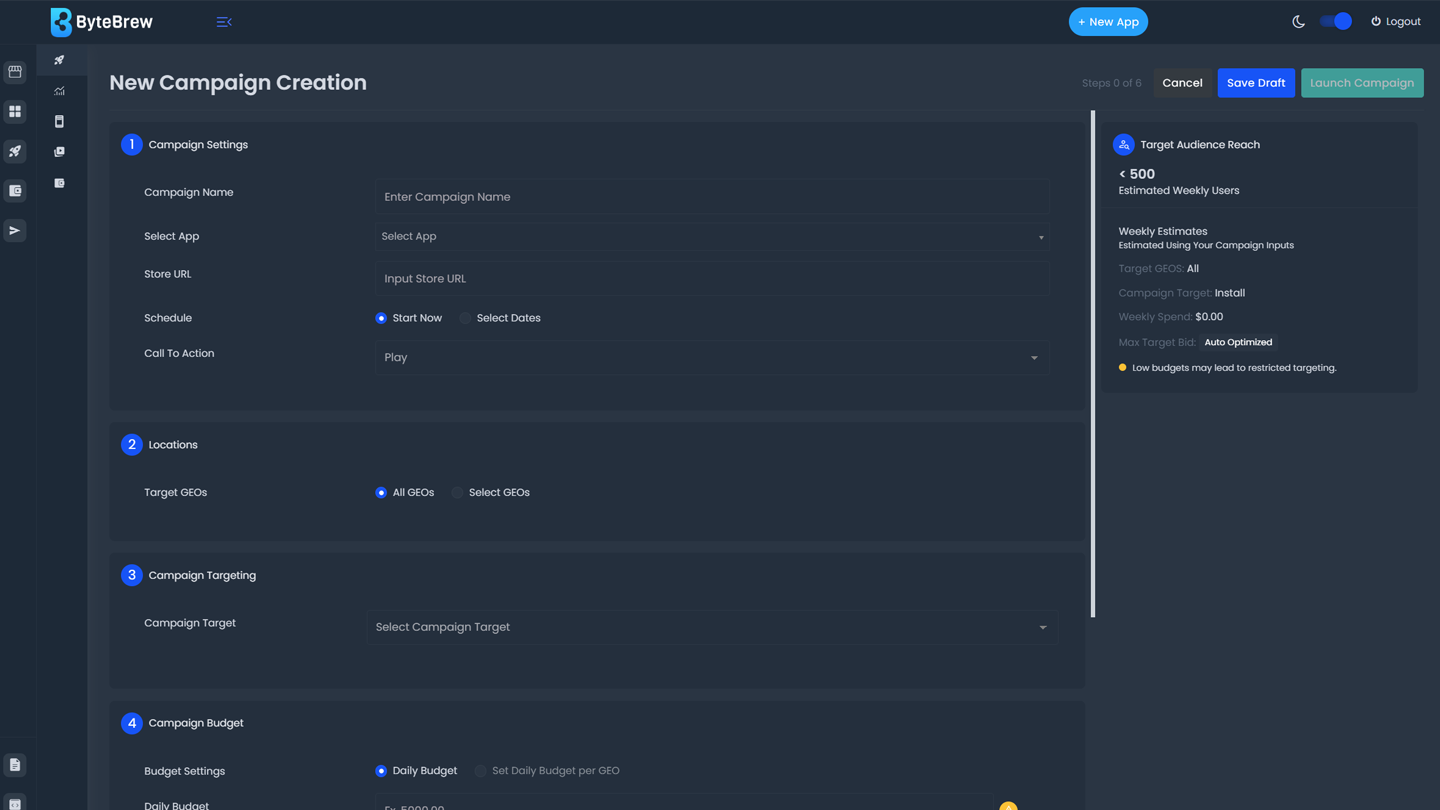
To begin setting up a new campaign, select the new campaign button in the Campaigns overview dashboard. Follow the steps below to complete the required setup process:
Campaign Settings
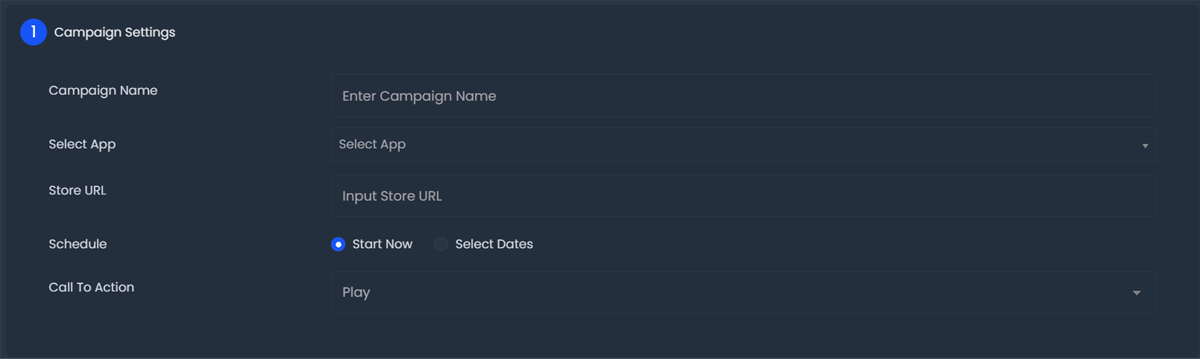
Input campaign and app details in the fields.
Campaign Name: Input a name for your campaign.
Select App: Select the App you want to acquire users for.
Store URL: Input the store URL for your app.
Schedule: Choose a schedule for your campaign to run. You have the option to start the campaign immediately after it's approved using the "Start Now" option, or selecting a start date/end date.
Call to Action: Choose the call to action that best fits your campaign. This will be displayed on the action button in the ad to your users.
Locations
Select the region(s) you want to target for your campaign by filling in the section fields below.
Target GEOs See options for Geo targeting

Campaign Targeting
Select the target for your campaign from the Campaign Types:
Retention Campaigns
Powered by Ctrl, Retention Campaigns target users in your apps that are predicted to meet your campaign target value. Selecting the retaining day you want to target for your campaign from Day 1 through Day 7.

LTV Campaigns
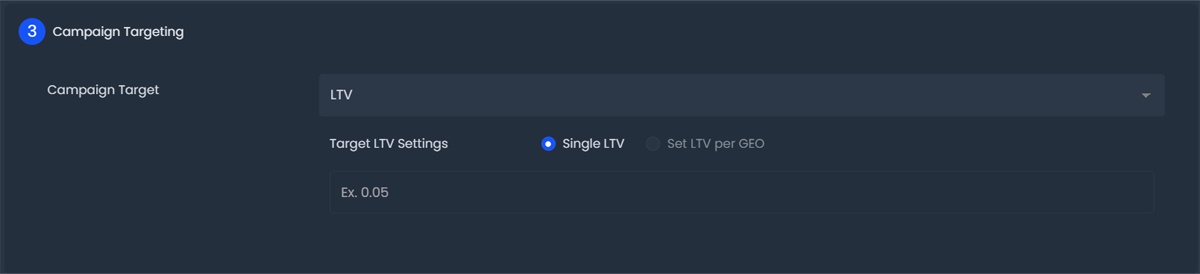
Powered by Ctrl, LTV Campaigns target users in your apps that are predicted to meet your campaign target value. Input the LTV value (USD) for users you'd want to target.
For campaigns with multiple Geo targets, you can set a single LTV target or set a LTV target per Geo you target in your campaign.
Want to learn what the right target is for your app? Go to ByteBrew's LTV Reports dashboard to query the optimal LTV to target for your app.
Install Campaigns
For campaigns that target generating installs, select the install campaign.

Campaign Budget
Input the daily budget (in USD) you want for your campaign. If you select multiple Geos to target, you have the option to set a daily budget per Geo.

Campaign Bid
Select the bid setting for your campaign from the list below. It's always recommended to choose auto-bid in your campaign to capture the full range of users that are predicted to meet your campaign targets.

Creatives
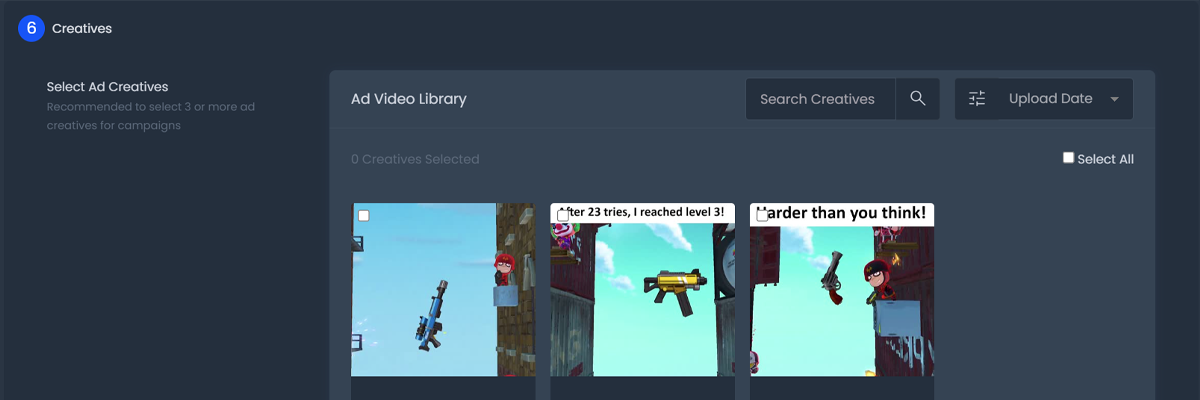
Select the creatives you to utilize in your campaign. This list is autopopulated from the creatives you have previously uploaded for the app you're targeting.
Launch Your Campaign
Once you've completed each of the required sections, launch your campaign by selecting the launch button.
After launching the campaign, ByteBrew Ads will begin distributing the campaign. It can take up to an hour for a new campaign to start displaying to your users.
Campaign Preview Panel
On the right of the campaign window, there is a campaign preview panel that shows a summary of your campaign settings you've imputed.
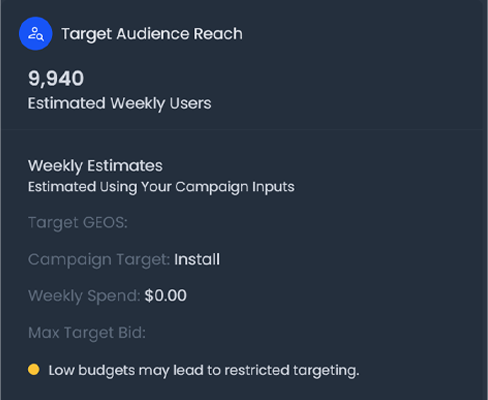
Campaign Weekly Audience Reach
In the panel, you will see an estimated audience size for your campaign based on the targets you've set. This is calculated using the previous day's data in your portfolio and estimating that over a 7 day period. You can use this figure to gauge the expected campaign visibility. If the number is lower than expected, adjust your campaign targets to see the figure recalculate.
FAQs
The dashboard operates in UTC time.
ByteBrew uses the device's rooted origin to target users in your campaign.
A two week minimum is recommended to get a mature test.
Yes, the first week is used to learn and optimize toward your campaign targets.
In-app purchase validation and ad event tracking must be integrated.
Reach is estimated using prior-day portfolio data projected over a 7-day period.
Low bids or restrictive targeting can reduce impressions. Adjust bids or broaden targets.
Ctrl predicts user LTV and retention in real time to optimize acquisition decisions.
ALT selects the creative most likely to engage each user in real time.
All values and revenue metrics are in USD.
Follow the instructions under Edit Campaigns to learn how to make edits.
To turn off campaigns follow the Pause Campaigns section on the Manage Camapign page.
Data from users who interacted with your campaign can be received up to 14 days after the campaign is paused.
Yes, you can enable paused campaigns. It may take several hours before results begin to populate.
Live campaigns cannot be deleted. Only draft campaigns can be deleted.
Yes, navigate to the drafted campaign settings and select the delete button.