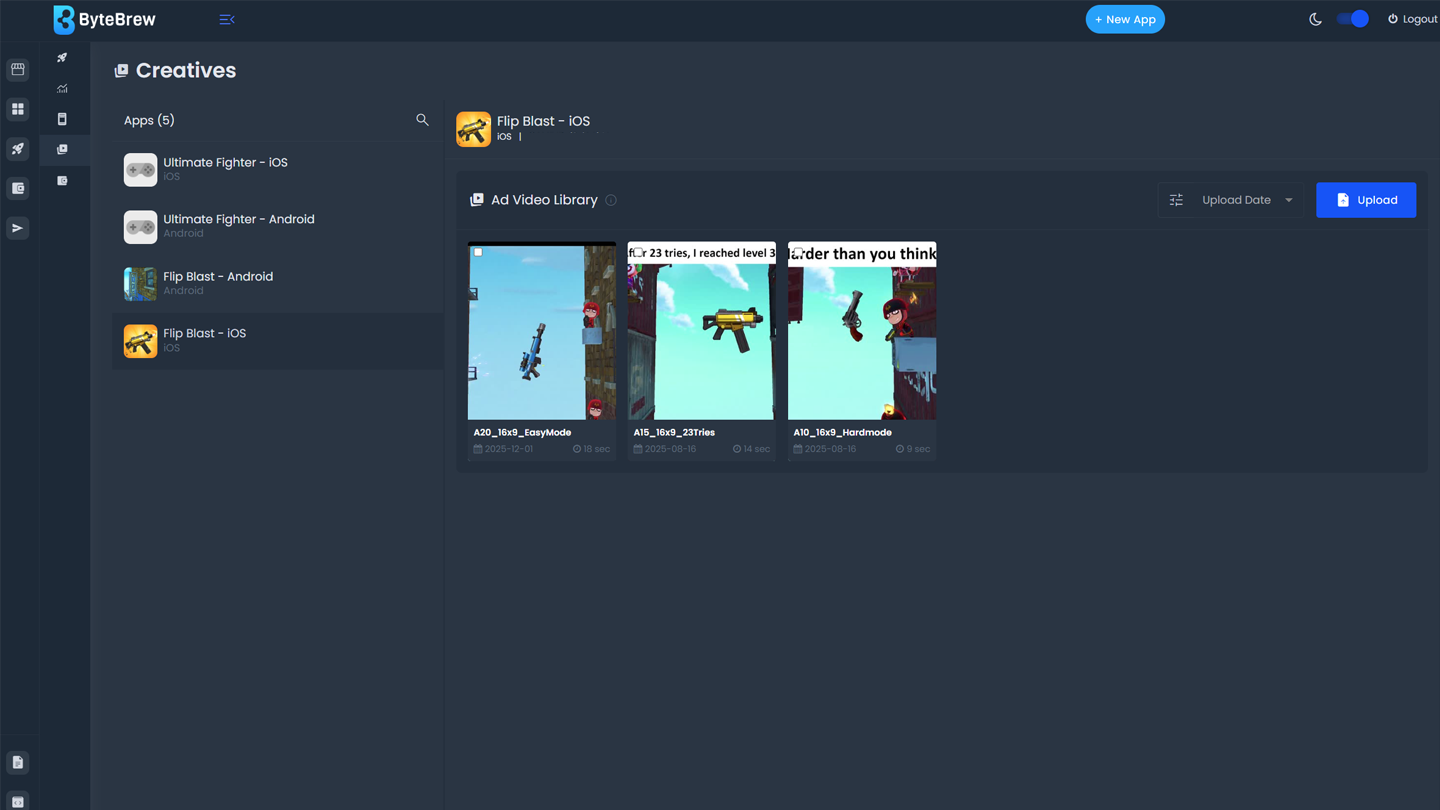
Required to Start using Creatives
To start using Ad Units, you must have completed the following items in the table below:
| Initialize ByteBrew | Initialize both ByteBrew SDK and ByteBrew Ads in your app. |
|---|---|
| Implement App Monetization Tracking | Implemented Ad Event Tracking and In-App Purchase Validation in your SDK integration for Ctrl powered LTV and Retention Campaigns. |
| Create Ad Units | Created your app's Ad Units and implemented them into your app. |
| Setup Finance Account | Completed your account's finance setup in the Finance dashboard. |
Creatives
Creatives you upload are organized under the apps you have created on the platform.
Creative Requirements
The following are requirements for the creatives you upload.
Upload Creatives
To upload creatives, follow the steps below.
Select the app from the app list for the creatives.
Select the upload button.
Select the creative you want to upload.
Edit Creatives
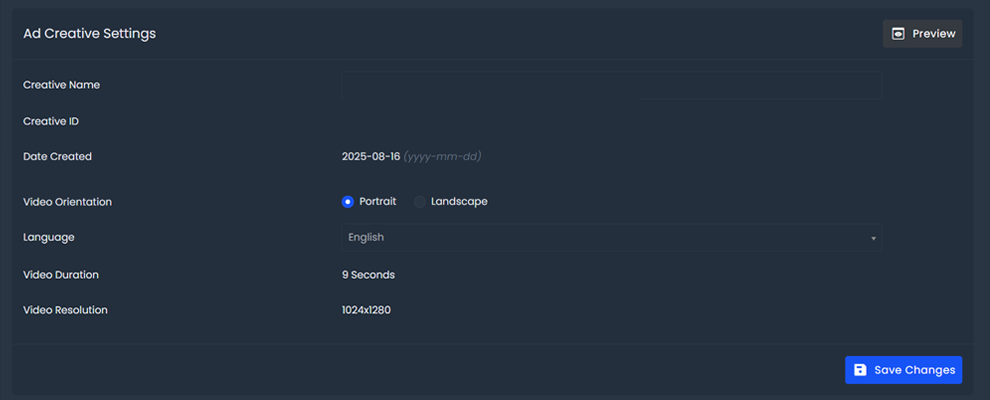
Selecting a creative shows the following information. Items with a "*" are editable.
Clone Creatives
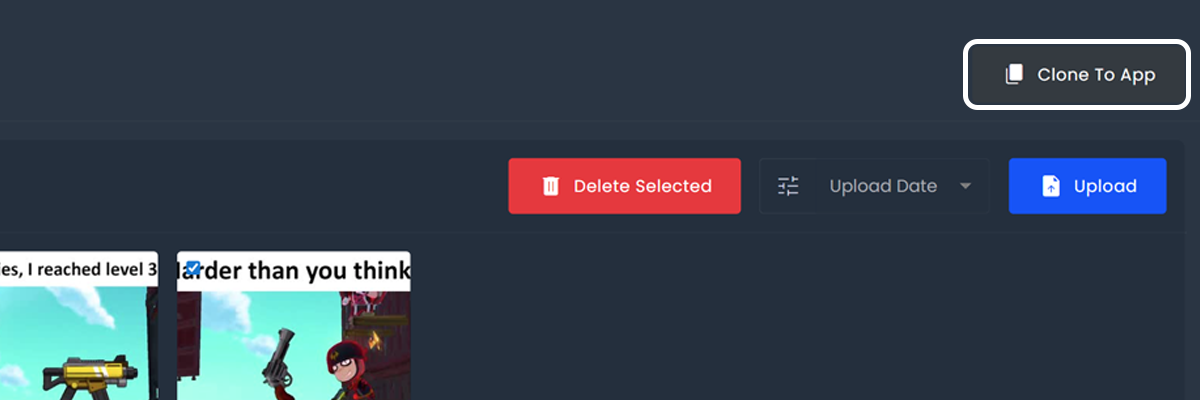
To make the upload process quick, you can clone a set of creatives to another app you've added on the platform by following the steps listed:
Select the creatives you wish to clone.
Hit the Clone button.
Select the app you wish to clone the creatives to.
Delete Creatives
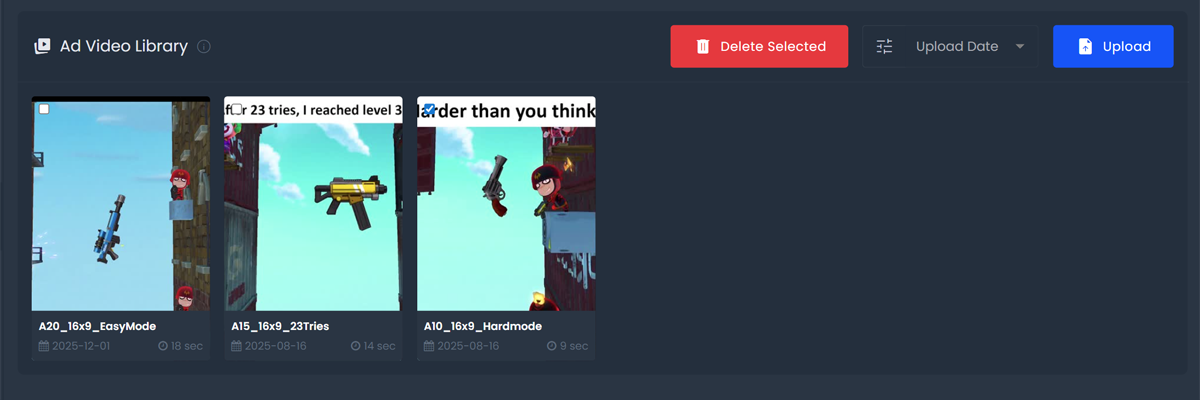
To delete creatives from your app, select the creatives you wish to remove and then hit the delete button that appears.
Preview Creatives
To preview a creative you've uploaded, hover over the creative and select the "eye" button. This will open the creative you've uploaded in a new tab for you to preview.
FAQs
It's always recommended to always utilize the native aspect ratios listed under the "Creative Requirements". If you choose to utilize an aspect ratio, ByteBrew Ads will attempt to auto-fit your creative to the user device screen size.
If your creative does not fit the listed requirements under "Creative Requirements", it will not be able to be uploaded.
This is dependent on your internet speed and file size of the creative you're uploading.
You can upload one creative at a time, up to 25 per hour.
The max number of creatives you can upload is 250 per app.
You can upload up to 10 creatives per hour.
The max number of creatives in one campaign is 50.
To turn off an active creative from your campaign, go to your campaign settings and navigate to the Creatives section. Deselect the creative you want to turn off and save your changes to the campaign. This will turn the creative to "inactive".