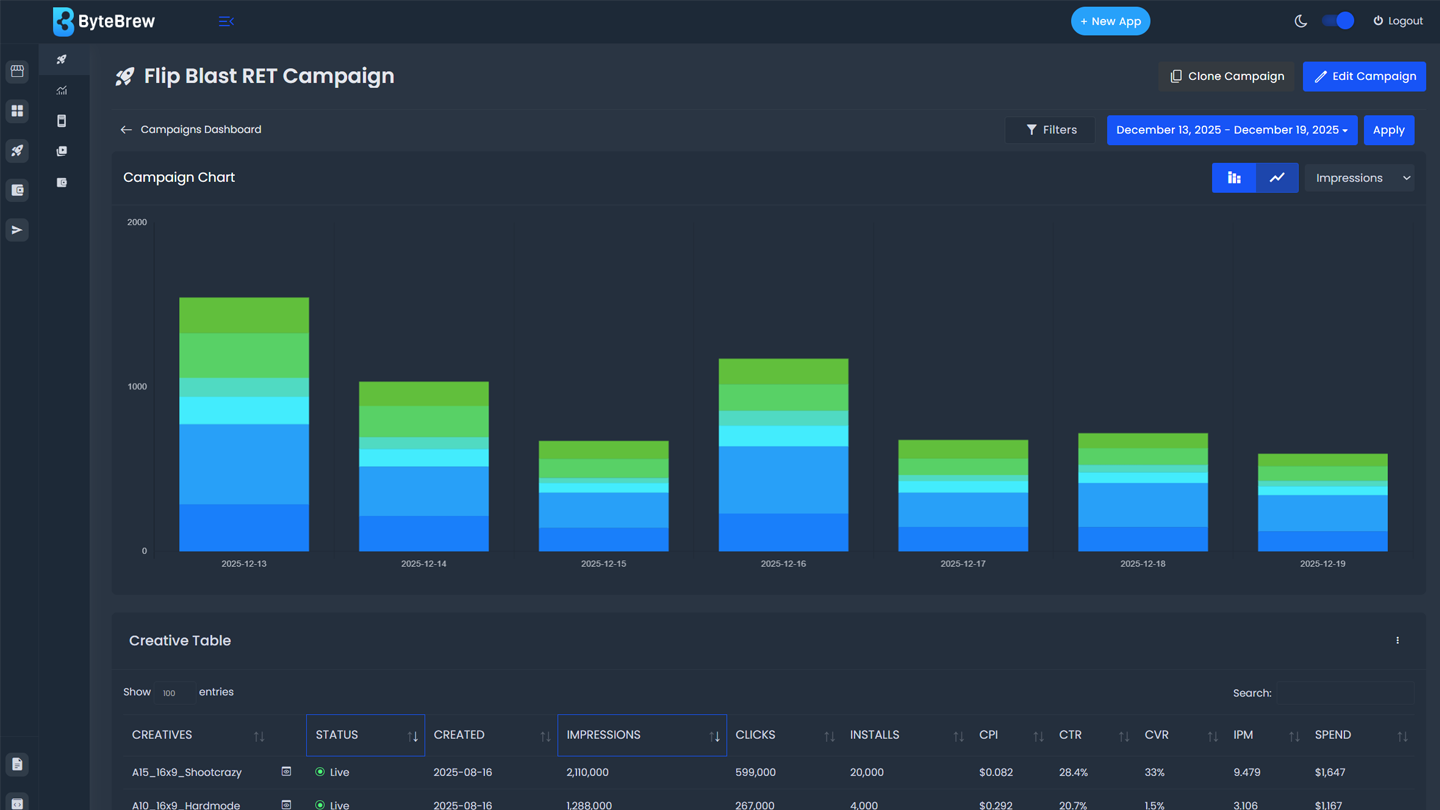
Campaign Analysis
Located by selecting a campaign under the Campaign Overview, the Campaign Analysis dashboard enables you to manage campaign settings and analyze core performance metrics from the live creatives in the campaign.
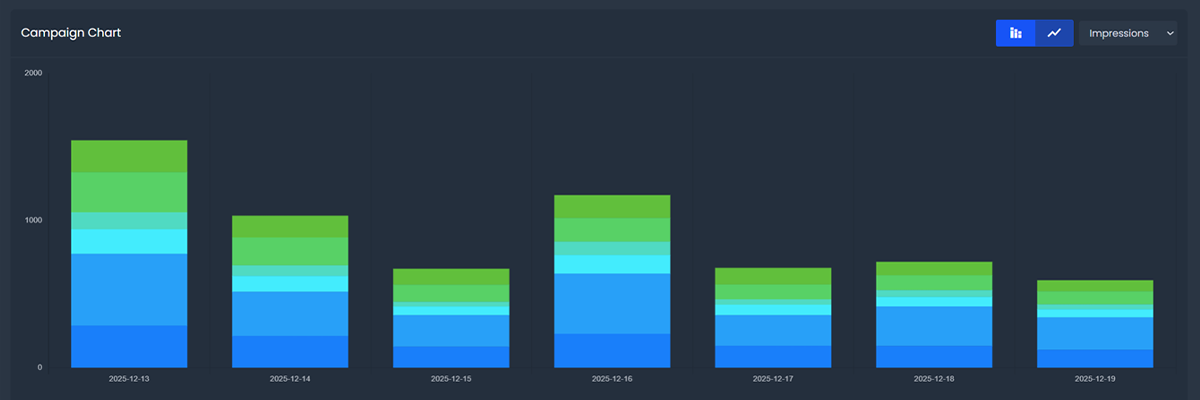
Campaign Chart
The Campaign Chart features a metric selected from the chart dropdown listed by the campaign creatives across the date range selected.
Creative Table
The Creative Table lists the following set of core performance metrics by the campaign creatives across the date range you selected:
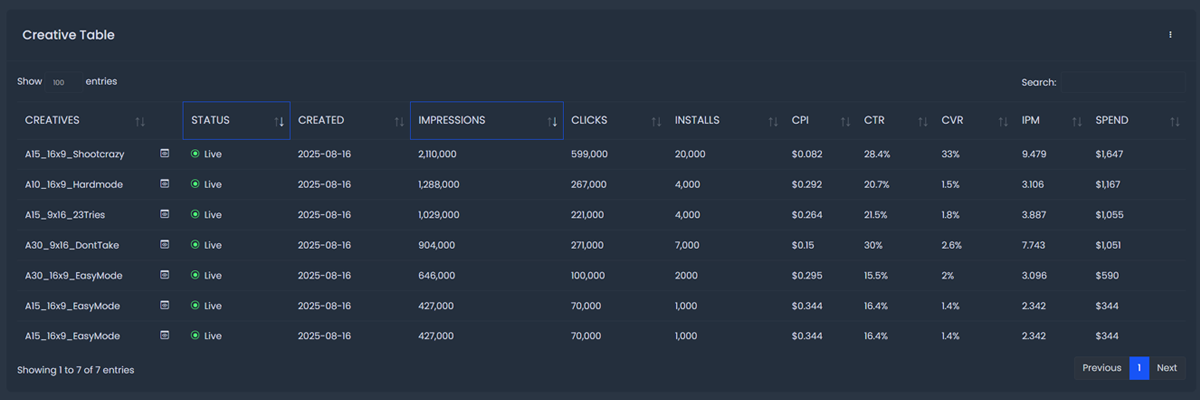
| Spend | Amount spent (USD) on the campaign within the date range selected. |
|---|---|
| Impressions | Total number of impressions in the creative within the date range selected. |
| Clicks | Total number of clicks in the creative within the date range selected. |
| Installs | Total number of installs in the creative within the date range selected. |
| eCPI | Cost per Install (CPI) is the calculated average cost for each install driven within the date range selected. |
| IPM | Installs per mille (IPM) measures the number of app installs per 1,000 ad impressions within the date range selected. |
| CTR | Click through rate (CTR) is the rate of impressions that result in clicks within the date range selected. |
Edit Campaign
You can make edits to campaigns you've created. To edit your campaign, select the edit button in the campaign to direct you to the campaign settings. In the settings you can update the items listed below. These updates are applied after you deploy the edits.
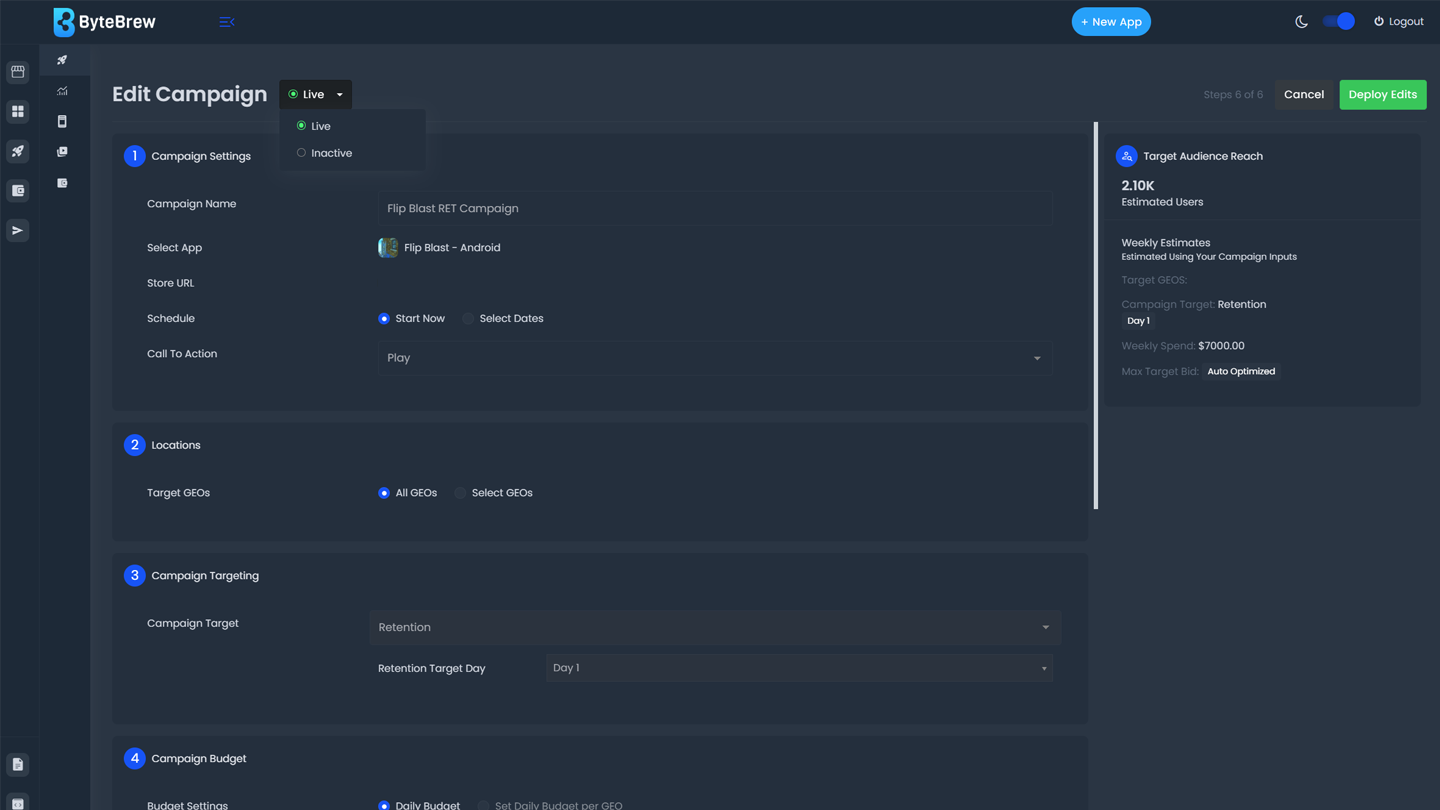
The following campaign settings are editable:
Pause Campaigns
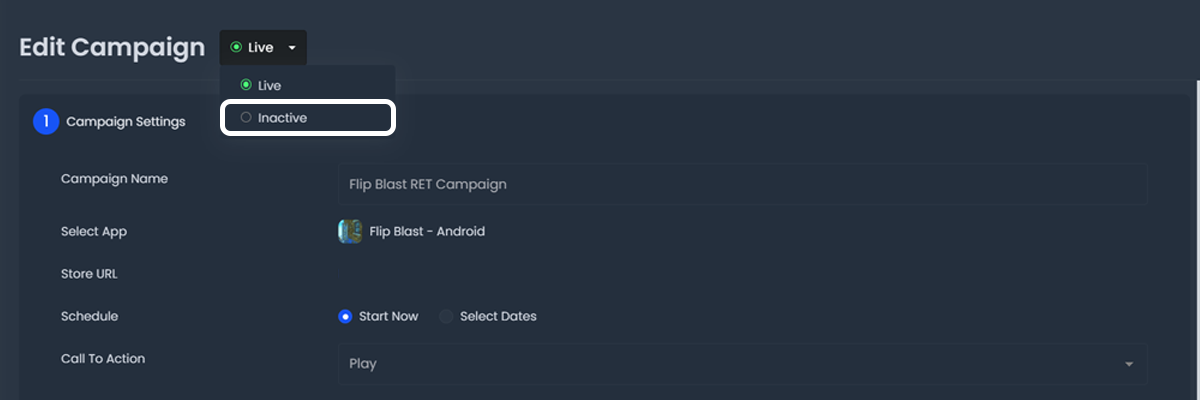
To stop campaigns from serving in your app, select the campaign status field and select "Inactive". Make sure to save your edits after changing the campaign status.
Clone Campaigns
For fast campaign setup, you can clone existing campaigns to deploy under new settings you update. Follow the steps below to launch cloned campaigns:
Select the campaign you want to clone.
Select the clone button.
Edit the settings you wish to change for your cloned campaign. Note: After cloning, your campaign will be placed into a Draft status where you can edit the cloned settings.
After, click the Campaign status dropdown and set the campaign to Active.
Launch your new cloned campaign.
FAQs
The dashboard operates in UTC time.
ByteBrew uses the device's rooted origin to target users in your campaign.
A two week minimum is recommended to get a mature test.
Yes, the first week is used to learn and optimize toward your campaign targets.
In-app purchase validation and ad event tracking must be integrated.
Reach is estimated using prior-day portfolio data projected over a 7-day period.
Low bids or restrictive targeting can reduce impressions. Adjust bids or broaden targets.
Ctrl predicts user LTV and retention in real time to optimize acquisition decisions.
ALT selects the creative most likely to engage each user in real time.
All values and revenue metrics are in USD.
Follow the instructions under Edit Campaigns to learn how to make edits.
To turn off campaigns follow the Pause Campaigns section on the Manage Camapign page.
Data from users who interacted with your campaign can be received up to 14 days after the campaign is paused.
Yes, you can enable paused campaigns. It may take several hours before results begin to populate.
Live campaigns cannot be deleted. Only draft campaigns can be deleted.
Yes, navigate to the drafted campaign settings and select the delete button.