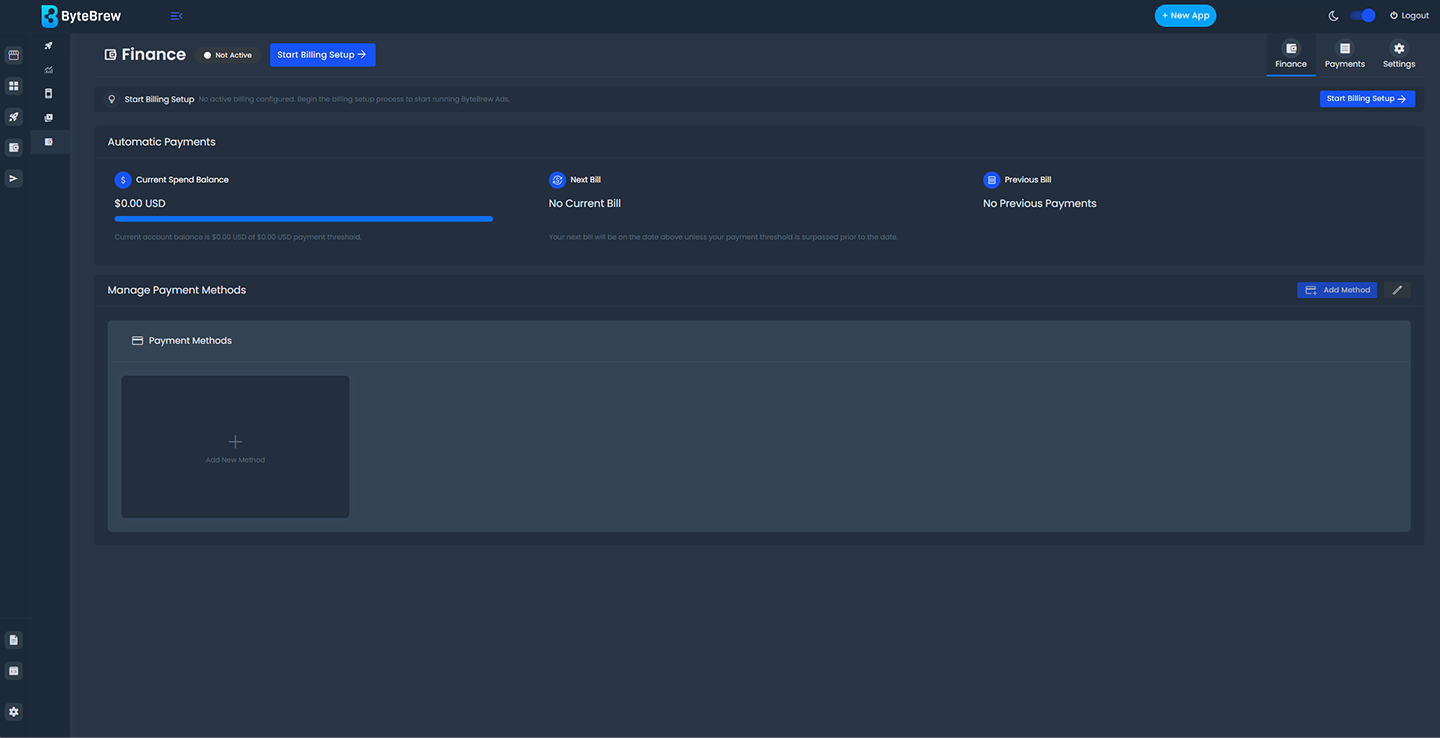
Required to Start Finance
To start with Finance, you must have initialized both ByteBrew SDK and ByteBrew Ads in your apps.
Setup Finance
To launch campaigns with ByteBrew Ads, you must complete our Finance billing setup. Select "Start Billing Setup" and fill in the the steps below to set up your billing account on ByteBrew Ads.
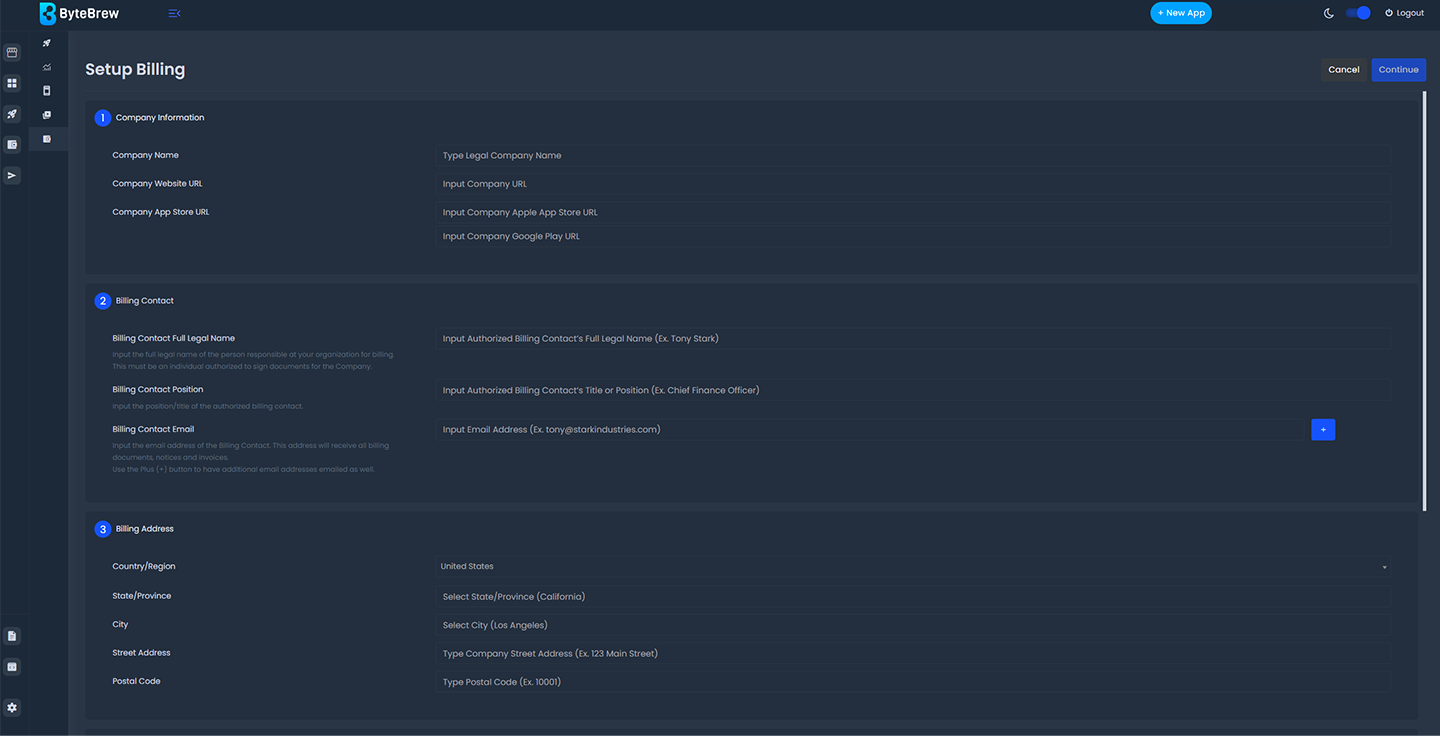
Company Information
Billing Contact
Billing Address
Company Verification
Payment Type
Select the Payment Type for your account. See Payment Types sections below to learn more about each type.
Confirm Company Information
Accept ByteBrew Advertising Terms
Automatic Payments Setup
If you've selected Automatic Payments during your Finance setup, follow the next steps to complete your billing setup.
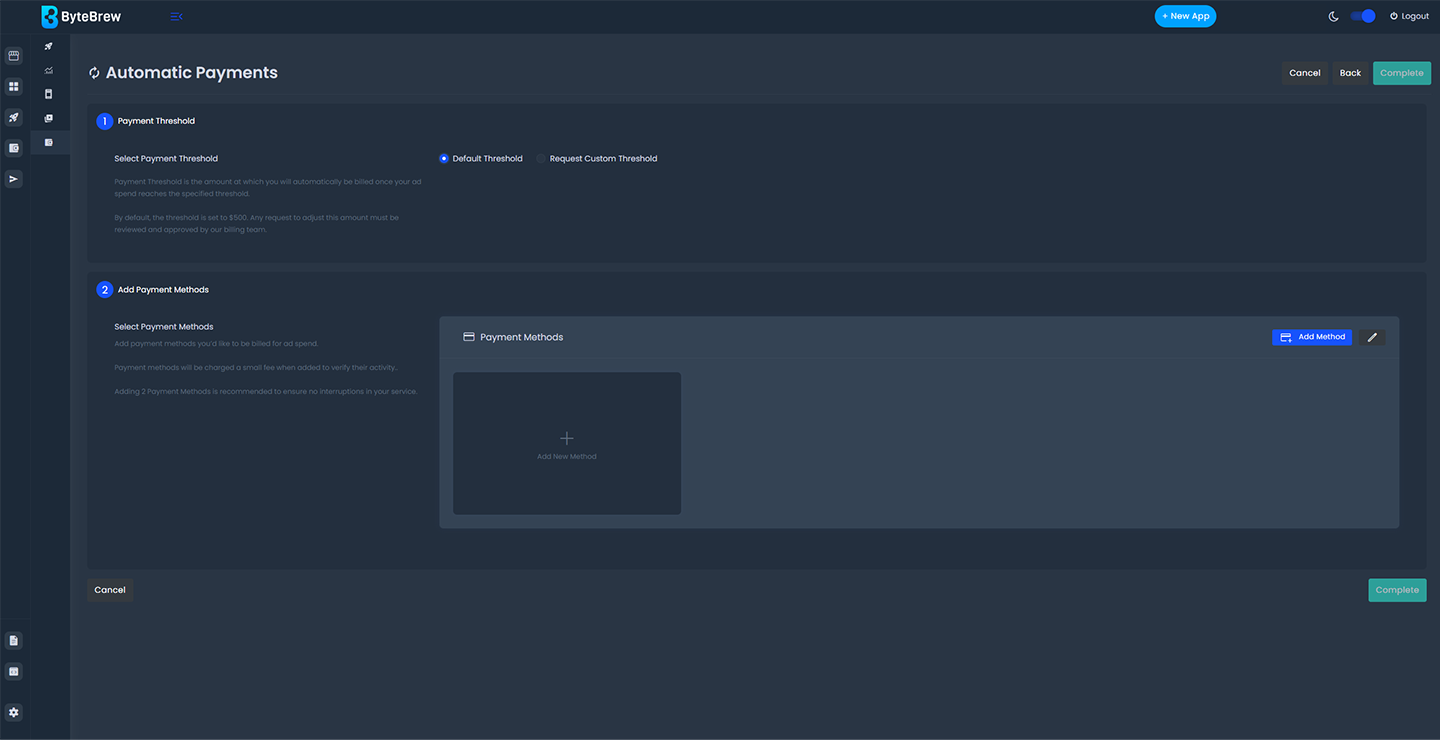
Add Payment Methods
Add payment methods to your billing account by hitting "Add Method". This will take you to Stripe, where you can select any of the approved payment methods to be added for billing to your account. Note: It's recommended to add at least 2 payment methods to your account to ensure no interruptions in your service if one method fails to process an automatic payment.
Hit Complete
If you've filled in all the account billing details and selected "Default Threshold", then your account will be automatically approved. Note: If you've requested a Custom Threshold, your account will be reviewed by a ByteBrew team member to be approved or denied for Monthly Invoices. Please allow up to 2 business days for account reviewal.
Monthly Invoice Setup
If you've selected Monthly Invoicing, your account will be reviewed by a ByteBrew team member to be approved or denied for Monthly Invoices. Please allow up to 2 business days for account reviewal.
Payment Types
ByteBrew Ads offers two payment types options. Learn about each in the below sections.
Automatic Payments
Automatic payments will automatically pay invoices using a linked card or other approved payment method either on a scheduled monthly billing date or if your account spend reaches your account's automatic billing threshold prior to the scheduled monthly billing date. This payment type is recommended for those who have daily budgets below $5000 USD.
Monthly Invoicing
Monthly Invoicing allows you to pay your account's total monthly ad spend in one invoice calculated at the end of each billing cycle with Net 30 terms. This payment type is recommended for monthly budgets above $250,000 USD. Monthly Invoicing is available on request only. Contact your ByteBrew representative to request it.
Payments
Under the Payments tab in the Finance dashboard, you can view your payment history. Invoices for your Shift MCP usage are billed here as well, and appear in the invoicing section alongside your ByteBrew Ads invoices.
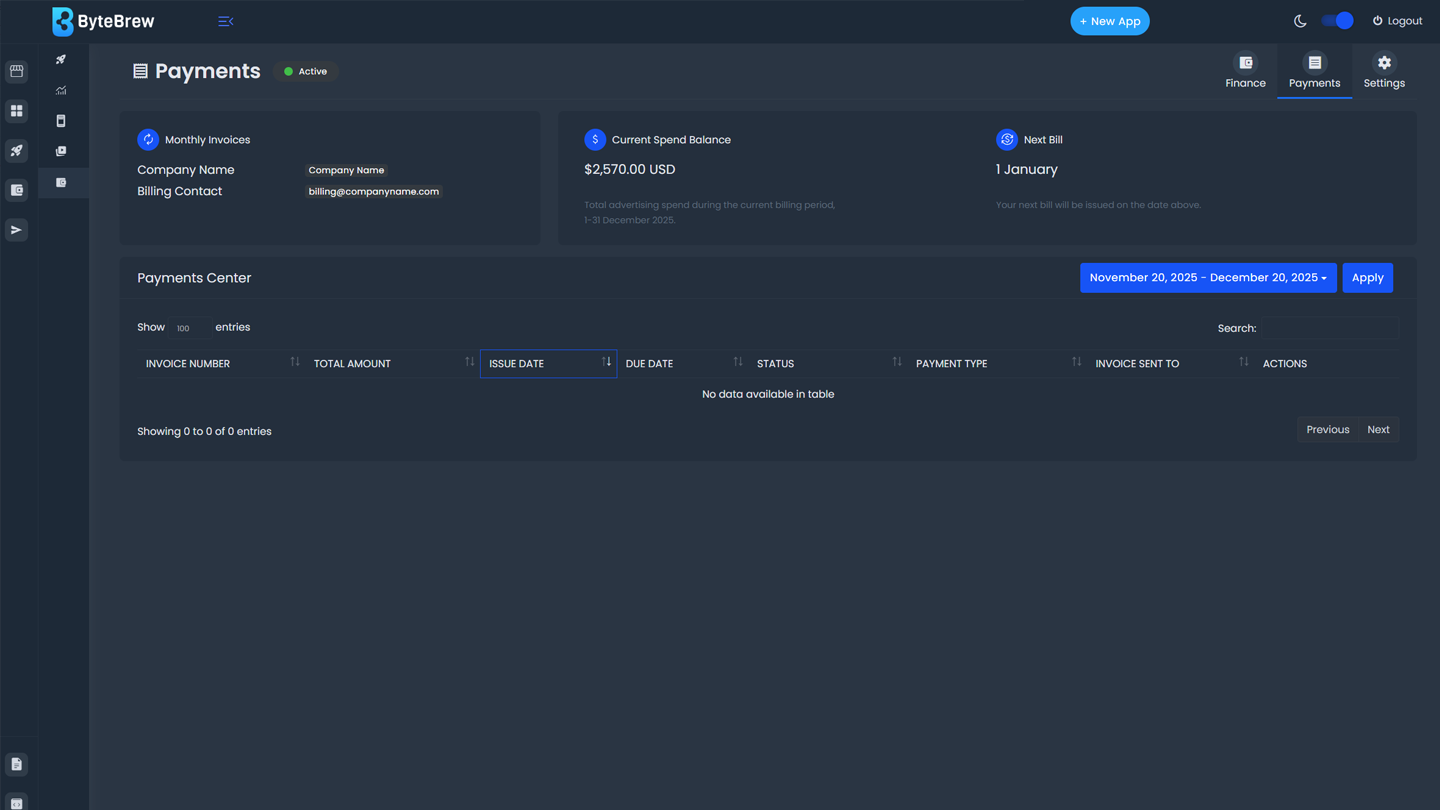
Payments Center
The Payments Center lists all the latest payments and invoices on your account, including both your ByteBrew Ads invoices and your Shift MCP invoices. Under the table you will see the following information:
| Invoice Number | The Invoice number of the bill. |
|---|---|
| Total Amount | Amount of due in the invoice. |
| Issue Date | Date when the invoice was billed. |
| Due Date | Date when the invoice is due. |
| Status | The active status of the bill. There are several statuses:
fiber_manual_record
Paid: Invoice has been successfully paid.
fiber_manual_record
Overdue: Invoice is late and overdue. Your account will be at risk of suspension if not paid.
fiber_manual_record
Voided: Invoice has been removed.
|
| Payment Type | Lists the payment type the invoice is billed as. This is either Monthly Invoicing or Automatic Payment. |
| Invoice Sent To | Lists the emails a copy of the invoice is sent to. |
| Actions | Download Invoice, Download Receipt |
Edit Finance Settings
To edit finance settings, navigate to the Settings tab in the Finance dashboard and turn on "Enable Edit Mode" to start modifying your billing information. After updating your settings, make sure to hit "Save Edits".

Add Payment Methods
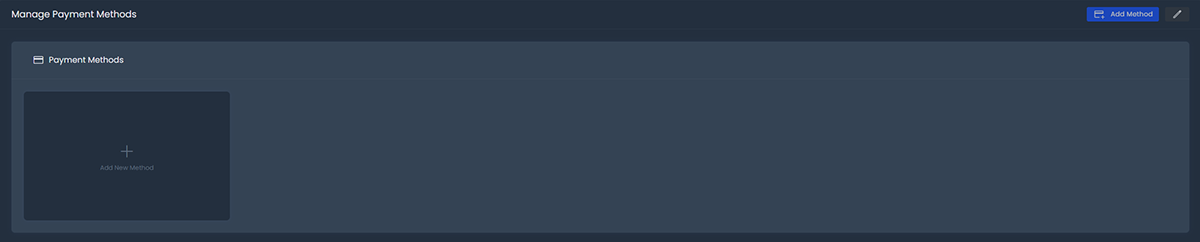
Add a payment method to your account by selecting "Add Method" under Manage Payment Methods section on the Finance dashboard. This will take you to Stripe where you can add a new approved payment method to your account.
Edit Payment Methods
For editing payment methods, hit the "Edit" icon under Manage Payment Methods section on your Finance dashboard. This will take you to Stripe where you can make the required edits to your payment methods.
Remove Payment Methods
To remove payment methods, hit the "Edit" icon Manage Payment Methods section on your Finance dashboard. This will take you to Stripe where you can make the required edits to your payment methods.
Account Status
On the Finance dashboard, you will see your account status on the top of the dashboard. Below are the different account statuses:
If your account is suspended, reach out to finance@bytebrew.io and your ByteBrew team representative.
FAQs
If you have a problem with your invoice email finance@bytebrew.io and your account representative at ByteBrew if you have one.
Overdue invoices mean that the invoice is past its due date and we have not received a payment for that invoice. If an invoice is 14 days overdue, your account will be suspended and services turned off.
All Monthly Invoices are Net 30 terms.
To request a payment type change, navigate to the Finance Settings tab and hit "Switch to Monthly Billing". A ByteBrew team member will reach out with next steps if you qualify.
To request an increased account threshold, navigate to the Payments page under the Finance dashboard and hit "Request Threshold Increase" to input the new value you'd request. A ByteBrew team member will reach out with next steps if you qualify.
To change your billing email contact, go to the Finance Settings tab, enable Edit Mode and add a new billing contact email. After, make sure to hit "Save Edits".
There are several reasons for Account Suspension. If your account is suspended, see below for a potential list of reasons to check: Overdue or Missing Payment(s), Content Violation, ByteBrew Policy Violation. If your account is suspended, reach out to finance@bytebrew.io and your ByteBrew team representative.
ByteBrew uses Stripe as its payment processor.
The default threshold is $500 USD.
ByteBrew Ads is in USD.
Ad spend is accumulated when ad impressions are shown in your app, and billed based on your Payment Type.